> For the complete documentation index, see [llms.txt](https://help.waylight.me/llms.txt). Markdown versions of documentation pages are available by appending `.md` to page URLs; this page is available as [Markdown](https://help.waylight.me/help-center/ua/business-user/podiyi/how-to-create-a-promo-code-for-an-event.md).

# How to create a promo code for an event

You can create a promo code for any of your Waylight events from your **Business Account**.

Go to **Settings → My promotions** and click **Add promotion**.

### How to create a promo code

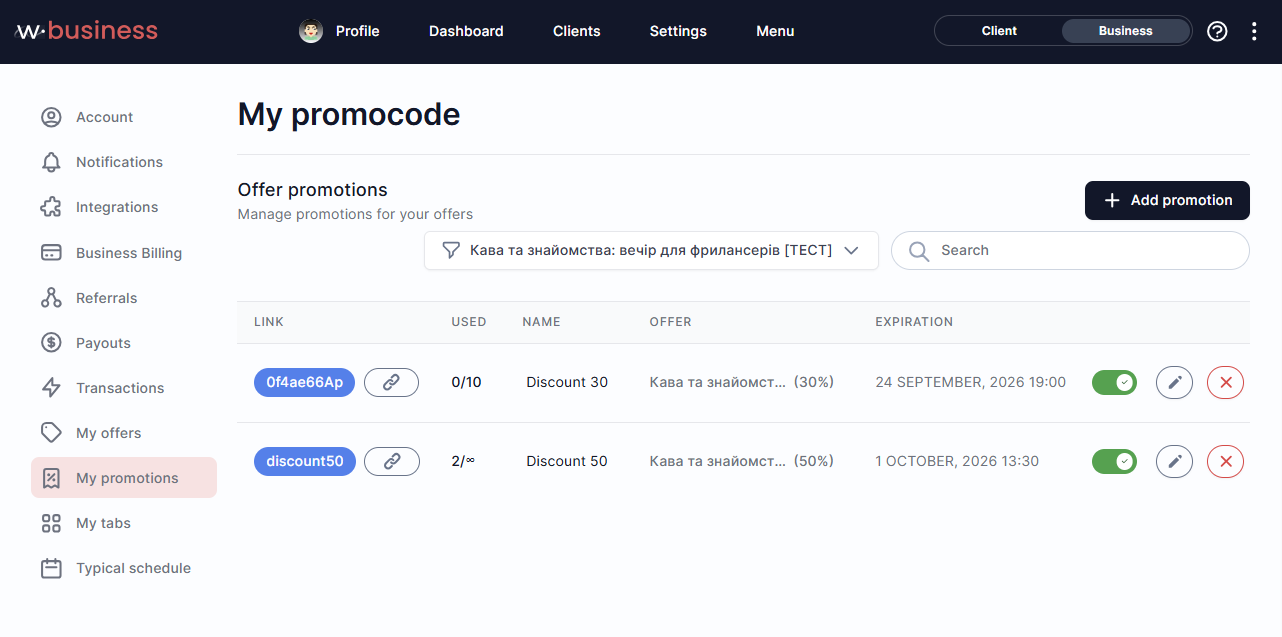
1. In **Offer**, select the event the promotion should apply to.

   **Note:** you won’t be able to change the selected offer later for this promotion.
2. Enter a **Name** for the promotion.

   This name is for your internal use only.
3. Create a **Code**:
   * enter your own unique code using English letters and numbers, or
   * use the generate button to create one automatically.
4. Set the **Expiration** date and time.
5. Set the **Number of uses**:
   * choose a specific limit, or
   * leave it unlimited.
6. Select the **Discount** percentage.
7. Check the discounted price shown below the pricing section.
8. Click **Save**

<figure><img src="https://content.gitbook.com/content/lityU4wEl1NoTOWw3r1v/blobs/UruQAXR61QxWjFZly6X1/file-HffhaZJg2x.png" alt=""><figcaption><p>Creating a promotion for a selected event, including the promo code, expiration date, usage limit, and discount.</p></figcaption></figure>

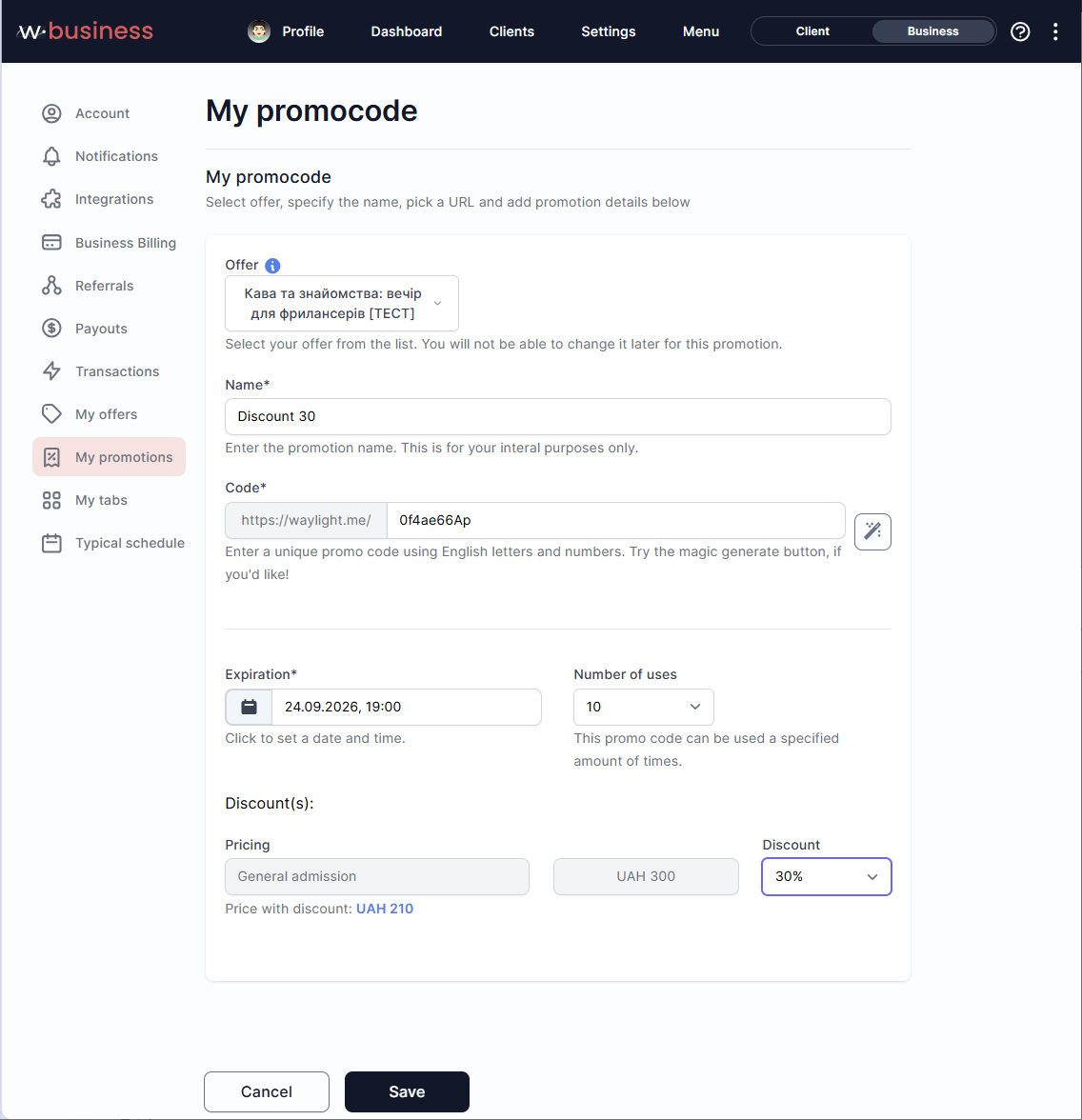
After saving, the promotion will appear under **Settings → My promotions**.

You can copy the promotion link, see how many times it has been used, disable it, edit it, or delete it.

<figure><img src="https://content.gitbook.com/content/lityU4wEl1NoTOWw3r1v/blobs/Q9RE6vsJBNPuFECM3n6I/file-SRYZkumeUC.png" alt=""><figcaption><p>Saved promotions under Settings → My promotions, showing usage, event, discount, expiration, and management options.</p></figcaption></figure>